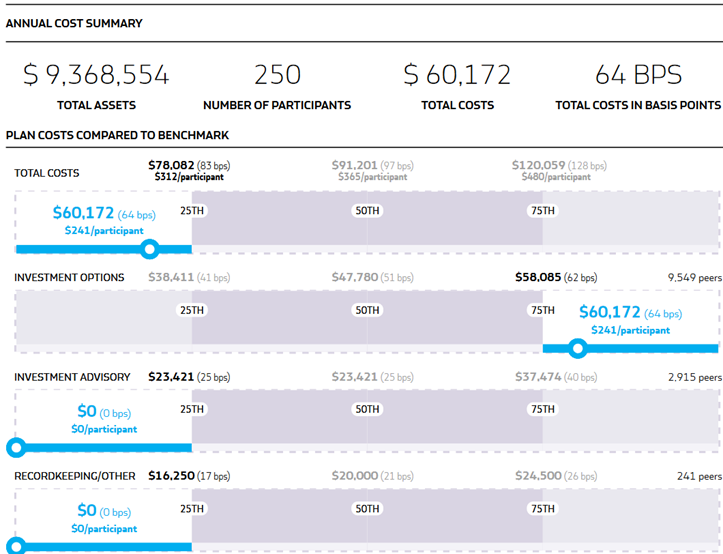
Plan Cost Benchmarking
You can now benchmark your total plan costs against plans with similar assets and average account balance.
Prior to this release, the Annual Cost Summary report section (which can be added to a Monitoring Report template) simply disclosed the costs of the plan and did not offer any context or insight as to whether that cost was reasonable or not. These new charts will serve to do just that through providing additional data talking points for you to discuss with the plan especially if you find yourself on the far left or far right side of the benchmark group.
To calculate the benchmark comparison, Fi360 separately evaluates the three main cost components of a plan (recordkeeping/administration, advisory, and the investment option management fees) and then adds these together to arrive at a total plan level benchmark. Please reference the Benchmark Methodology attached to this article for additional details on how the peer groups are created and where the data is derived.
The Plan Cost Benchmarking data in the Fiduciary Focus Toolkit was last updated on June 9, 2026.
In order to get the most out of the Total Plan Cost Benchmark report, please ensure you have the following items completed:
-
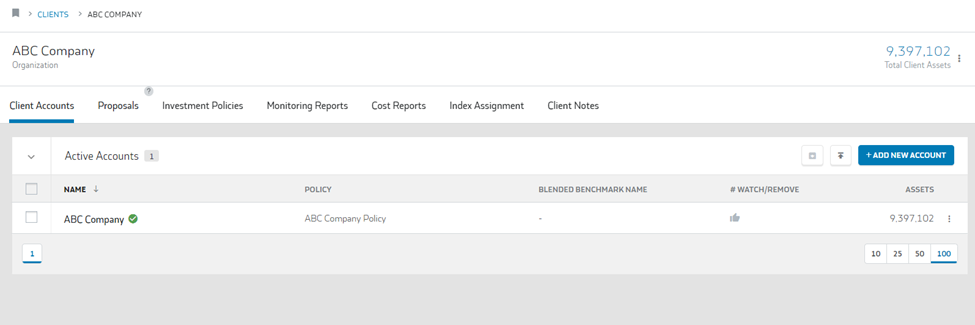
The current number of plan participants is entered in the client account. Click the 3 vertical dots to the right of the ASSET VALUE and then select "Edit Account" within that tab.
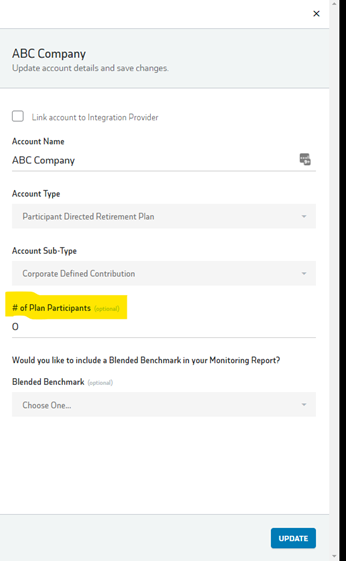
A new box will pop up and you will enter the number of plan participants and click “update.”
- The plan lineup is entered with dollar ($) values for the Monitoring Report period you are running.
**If applicable, Revenue sharing rates (12b1, SubTA, Shareholder Service Fees and/or wrap fees) should be entered within that tab.**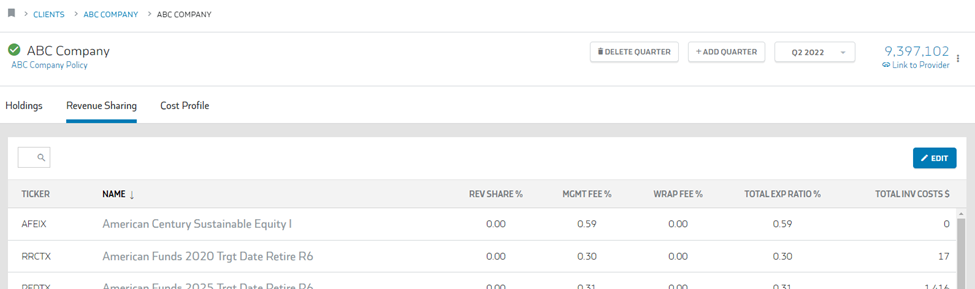
-
To ensure the advisor and recordkeeper costs for the plan are complete, ensure a cost report is loaded with the appropriate cost profiles.
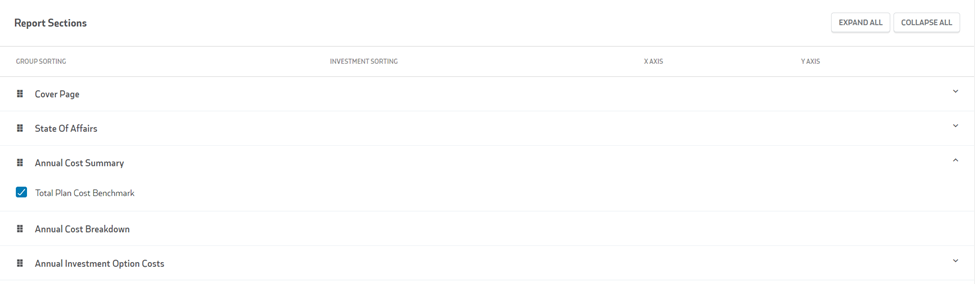
**For more info on how to create a cost profile/edit revenue sharing please click here.It is possible to include the Annual Cost Summary with or without the plan benchmark data. You can control this within the report template once you add the section. You will add the Report section “Annual Cost Summary” then click on the report section and make sure there is a blue check mark next to “Total Plan Cost Benchmark” as seen below:
For information on how to utilize the Report Template Editor feature, please reference: https://fi360.zendesk.com/hc/en-us/articles/360038780614-Report-Template-EditorWhen reviewing the Annual Cost Summary (with plan benchmark enabled), your report will look something like this if you’ve completed the steps above: