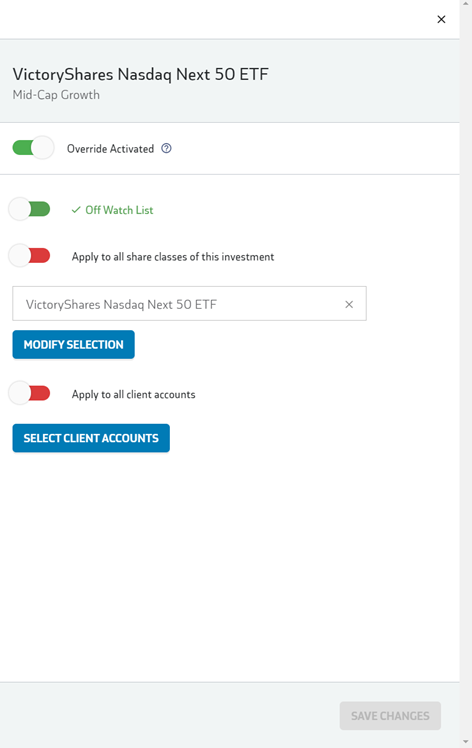
Watch List Overrides can be manually added to force the watch list status of an investment (both ON WATCH and OFF WATCH). Once activated, the override status will always take precedence over any watch list trigger and will remain in effect until you deactivate it. Each override can be activated for:
Your Entire Book of Business
This is more common and useful if you want the same decision applied across every client that holds this investment.
A Specific Client Account
This is useful when you have a targeted decision that only applies to a single client.
Across All Share Classes of the Same Parent Investment
This is more common and useful when you are making a watch list decision based on the quality of the investment manager and their performance.
A Specific Share Class
This is useful if you want to make a watch list decision for a single share class due to the expense structure of that class.
Manage your Watch List Override/s within the Investments tab under Book of Business, or in Application Management (gear icon in the top right corner of your screen).
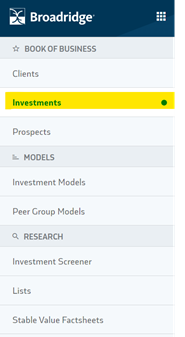
To access Watch List Overrides through the Investments tab, click on Investments (from your dashboard).
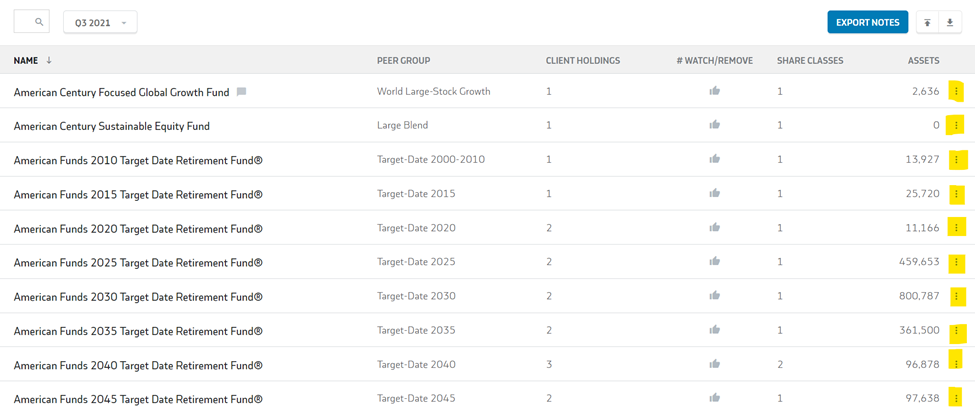
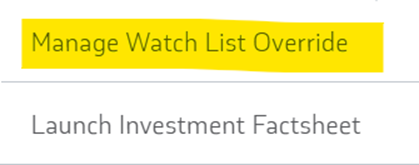
Then click on the action button “⋮” next to the fund you wish to manage and select “Manage Watch List Override.”
To access Watch List Overrides through Application Management, click the small Gear Icon in the top right corner of the screen.
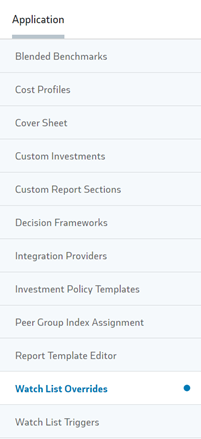
Select Watch List Overrides on the left -
Click  on the top right, and then search for your identifier.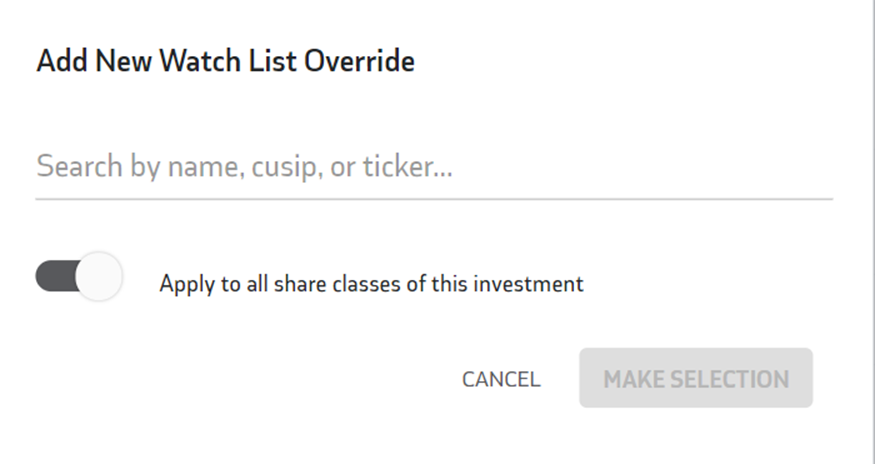
You have the option to manually keep investments on or off the Watch List, and apply to all or specific share classes, as well as client accounts by clicking the toggle switch.